

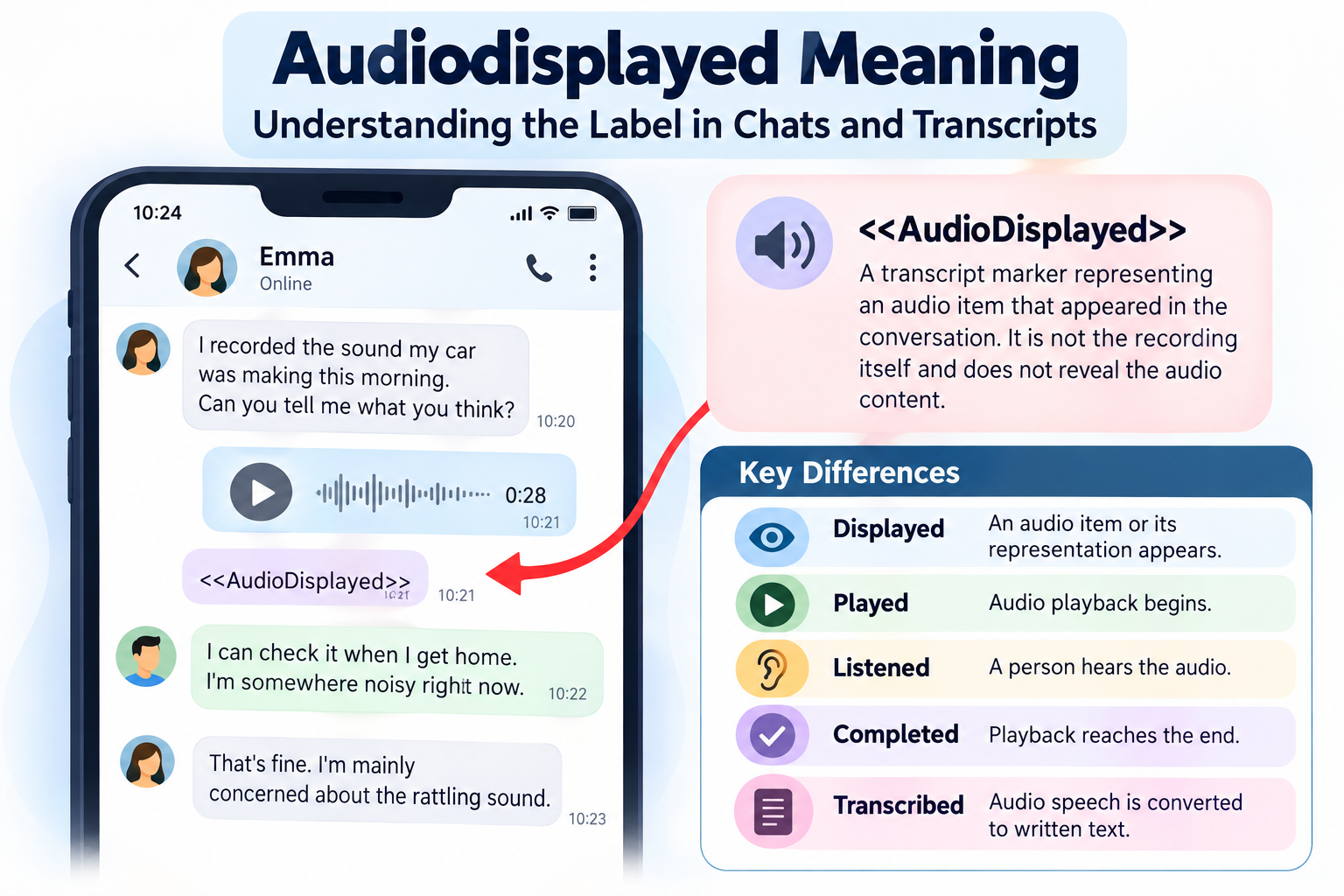
Audiodisplayed usually refers to an audio item being shown, represented, or marked within a digital system. You might encounter it in a chat transcript, exported conversation, or technical interface. However, its exact meaning depends on the software and surrounding context. It is not a universal status confirming that someone played or listened to a recording.
What Does Audiodisplayed Mean?
The term Audiodisplayed combines two familiar English words: “audio” and “displayed.” Audio refers to sound, such as a voice recording, spoken message, or music clip. Displayed means something has been presented or made visible.
Together, the words generally suggest that an audio-related item has appeared somewhere in a digital interface or written record.
Imagine opening a conversation and seeing a small audio player between two messages. The player contains a recording, but the recording itself is not written out as text. A system describing that conversation might use a label such as AudioDisplayed to identify the audio element.
The spelling can make the term seem more complicated than it is. In ordinary English, “audio displayed” would normally be written as two separate words. Software interfaces and programming environments, however, frequently combine words into labels.
Possible variations include:
- Audiodisplayed: A joined, lowercase-style version of the phrase.
- AudioDisplayed: A version with a capital letter separating the words.
- audioDisplayed: A naming style commonly associated with software identifiers.
- audio_displayed: An underscore-separated variation.
- Audio displayed: The ordinary two-word English phrase.
These spellings may express similar ideas, but they do not guarantee identical meanings in different systems.
Unlike familiar internet abbreviations, Audiodisplayed does not have one widely established conversational meaning. Its purpose is usually better understood by examining where it appears and what other information surrounds it.
For instance, a label beside an audio player may describe something visible on a screen. The same-looking text inside a saved conversation could instead represent an audio item that the exported document cannot reproduce.
That difference becomes particularly important when interpreting chat histories.
Audiodisplayed in Chats and Transcripts
Digital conversations can contain more than written messages. People exchange voice notes, audio recordings, photographs, videos, and other attachments.
When these conversations are copied into plain text, some content cannot be reproduced in its original form.
A photograph may be represented by a short image label. Similarly, an audio recording might be replaced with text indicating where the audio appeared.
This is one possible use of Audiodisplayed.
Consider the following fictional conversation, presented as an illustrative transcript:
Emma: I recorded the sound my car was making this morning. Can you tell me what you think?
Emma: <<AudioDisplayed>>
Daniel: I can check it when I get home. I’m somewhere noisy right now.
Emma: That’s fine. I’m mainly concerned about the rattling sound.
Daniel: I’ll message you after I’ve had a chance to listen.
In this example, <<AudioDisplayed>> is a transcript marker representing an audio item that Emma included in the conversation. It is not the recording itself, and it does not reveal the recording’s contents.
The surrounding messages provide useful clues. Emma mentions a recorded sound, while Daniel says he intends to listen later. This makes it reasonable to interpret the marker as representing an audio attachment.
The example does not establish that any particular messaging application uses this exact notation. It simply demonstrates how a text transcript might represent content that cannot be shown as ordinary written words.
Understanding the missing audio content
A transcript may preserve the order of a conversation without including every original attachment.
Suppose someone saves a long discussion containing several voice messages. The resulting document might show the written messages clearly but replace the audio recordings with short labels.
That document can still be useful for understanding when an audio item appeared and how other participants responded.
However, it may not contain enough information to establish what the recording actually said.
For example, a transcript marker would not normally tell you whether the audio contained a spoken question, background noise, music, or several people talking.
A separate transcription would be needed to represent spoken words in readable text.
The distinction matters because the presence of an audio marker should not be mistaken for a written account of the recording’s contents.
Displayed, Played and Listened Are Different
Three words often become confused when discussing digital audio: displayed, played, and listened.
They describe different things, even when they occur during the same interaction.
Displayed generally means an audio-related element has been presented. A webpage might show an audio player with a play button and a timeline.
Played indicates that playback began. The recording may have started automatically or after someone selected a playback control.
Listened describes a person’s actual experience of hearing or paying attention to the recording. Software cannot establish that experience merely from the presence of an audio player.
The following comparison highlights the differences.
| Term | General meaning | Simple example |
|---|---|---|
| Displayed | An audio item or its representation appears | A voice message player is visible in a conversation |
| Played | Audio playback begins | Someone presses play and the recording starts |
| Listened | A person hears the audio | A recipient hears a spoken message |
| Completed | Playback reaches the end | The recording finishes playing |
| Transcribed | Audio speech is converted into written text | A spoken sentence appears as readable words |
Note: These are general distinctions, not official status definitions for every platform. Software labels, tracking methods, and available indicators vary.
Consider a person opening a webpage containing a short interview recording.
The page loads, and an audio player appears beneath the article. At this point, the recording is available through the interface.
If the person selects play, the audio may begin running. But the person could have muted the device, removed their headphones, or stepped away from the computer.
Even a completed playback does not necessarily establish that the person heard or understood the entire recording.
For that reason, someone trying to determine whether a recipient heard a voice message should examine the actual messaging application’s indicators rather than relying on a vague Audiodisplayed label.
Why the Label Can Appear in Different Systems
Audiodisplayed may appear in several kinds of digital environments because audio content can be represented in different ways.
The label is not necessarily associated with a single application, manufacturer, or technical feature.
Interface text
A digital interface may contain labels that identify its components or describe their current presentation.
For example, an application displaying several media items might need to distinguish audio content from images and text. A developer could use a label resembling AudioDisplayed to describe the presentation of an audio component.
This would be a naming choice within that particular system rather than a universal software rule.
Exported conversations
A conversation exported from an application may be converted into a simpler format.
Some formats preserve the messages and timestamps but do not include every media attachment in a directly readable form.
An audio-related marker may then serve as a substitute for the original media.
The marker’s purpose would be to preserve some information about the conversation’s structure, not necessarily to document a playback action.
Automated transcript processing
Transcription and conversation-processing tools sometimes work with several kinds of information at once.
They may handle spoken language, written messages, attachment references, and system-generated text.
When such information is combined into one readable document, labels can help distinguish audio elements from ordinary messages.
A marker might identify the position of an audio recording even when no transcription of its speech is available.
Custom developer labels
Developers can create their own names for events, interface elements, or internal states.
For instance, someone designing a media application might choose the identifier audioDisplayed to describe when an audio component becomes visible.
Another developer could use the same name for a different purpose.
Because custom identifiers depend on how individual systems are designed, the spelling alone cannot establish the underlying behavior.
These possibilities explain why Audiodisplayed can appear in different places without having one fixed technical definition.
How to Understand Audiodisplayed Where You Found It
If you encounter an unfamiliar audio label, the best approach is to investigate its immediate context rather than guessing what happened.
A few practical checks can often clarify the situation.
1. Identify where the label appeared.
Start by determining whether you saw Audiodisplayed inside an active conversation, a downloaded transcript, a website, or a technical record.
This is important because a label in an exported document may serve a different purpose from text displayed inside a working application.
If someone sent you a screenshot, consider whether the label belongs to the original app or to another tool used to process the conversation.
2. Read the nearby messages or text.
The surrounding information may explain the role of the audio item.
For example, a message saying “Here is the recording from yesterday’s meeting” followed by an audio marker strongly suggests that the marker relates to an attached recording.
If the text appears beside technical information, it may instead be part of a system-generated record.
Nearby timestamps, filenames, and descriptions can offer further clues, although they should not be treated as conclusive evidence by themselves.
3. Examine the original audio item when available.
If you have access to the original conversation, look for the recording or audio player associated with the marker.
Check whether the item is present, whether it can be opened, and whether any relevant information accompanies it.
You may discover that the audio was simply omitted from the text version of the conversation.
If the original recording is accessible, its content may help explain the exchange more accurately than the marker alone.
4. Consult the relevant system’s explanation.
When the label appears in a specific application or software-generated document, check the instructions or documentation for that system.
Look for explanations of audio attachments, transcript formats, or status labels.
If no definition is available, it is better to describe the marker cautiously than assign it an unsupported meaning.
For example, saying that a transcript contains an audio marker is more precise than claiming that the recipient heard the recording.
These steps are especially useful when reviewing important conversations or trying to understand what information was preserved in an exported chat.
Common Questions About Missing or Unavailable Audio
People often encounter Audiodisplayed while looking for a voice recording that is not immediately accessible.
Although the label may offer a clue about the existence of an audio-related item, it cannot explain every problem involving missing media.
Does Audiodisplayed mean the recording was deleted?
Not necessarily.
An exported document might omit the actual audio file while preserving a marker showing where it appeared in the conversation.
The recording could remain available in the original application, or it might have been stored separately.
Deletion is another possibility, but the label alone cannot establish that it occurred.
If recovering the recording matters, examine the original conversation and any available attachments or saved files.
Does the label mean a microphone was recording?
No general interpretation supports that conclusion.
Recording sound and displaying an audio item are separate activities.
A microphone may be used to create a recording, while an audio player can present content that was recorded much earlier.
If you are concerned about active microphone use, examine the device’s microphone indicators and the application’s recording controls.
Is Audiodisplayed an error message?
Not necessarily.
Some labels look unusual because they were originally intended for software processing rather than everyday conversation.
A technical-looking label appearing in a transcript may simply indicate that certain media could not be included directly as text.
However, if a recording should be available and the application fails to open or play it, there may be a separate loading, file-access, or compatibility problem.
That problem should be investigated using the application’s actual error information.
What if the audio cannot be opened?
An unavailable recording may result from several circumstances, including a missing attachment, an incomplete export, a damaged file, or access restrictions.
The correct explanation depends on the original system and the condition of the audio file.
A transcript marker cannot identify which of these situations applies.
It is therefore useful to separate two questions: what the label represents and why the original recording is unavailable.
Conclusion
Audiodisplayed generally suggests that an audio-related item has been shown, identified, or represented in a digital environment. It may appear in chats, exported conversations, transcripts, or custom software interfaces.
The most reliable way to interpret it is to examine the surrounding messages and the system that produced the label.
Rather than treating Audiodisplayed as a universal status, understand it as a context-dependent description of an audio element.
FAQs
Is Audiodisplayed one word or two words?
In normal English, “audio displayed” would usually be written as two words. The joined form Audiodisplayed or AudioDisplayed may appear in software labels, transcripts, and technical text.
Does Audiodisplayed mean the audio has been transcribed?
No. A transcription converts spoken content into written words. Audiodisplayed may simply identify an audio item without revealing anything about what was said.
Is Audiodisplayed the same as audio description?
No. Audio description is an accessibility feature that provides spoken explanations of important visual information, such as actions and scene changes in a video. Audiodisplayed generally refers to the presentation or representation of audio content.
Does Audiodisplayed have the same meaning in every app?
No. Different applications and processing tools may use similar labels for different purposes. The specific meaning should be determined from the original interface, surrounding information, or relevant software documentation.
