

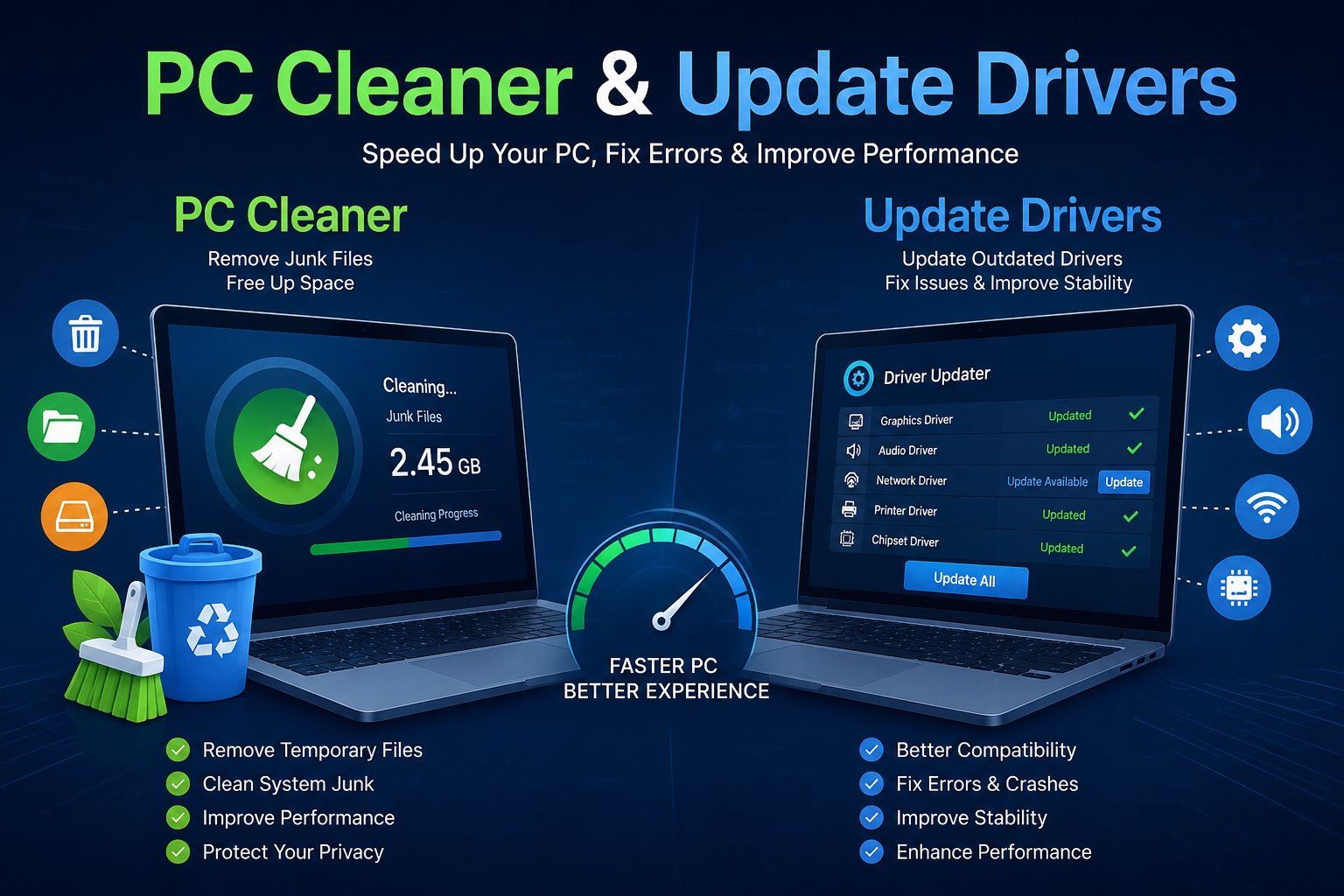
Whether you use it for office work, online education, gaming, or pleasure, a computer is an essential part of daily life. However, with regular use, your PC may become slower, experience unexpected errors, or struggle to run certain applications. Unnecessary files, outdated drivers, and poorly managed system resources can contribute to these problems. Fortunately, using a reliable PC cleaner and learning how to update drivers can help maintain your computer’s performance and stability.
We’ll look at how PC cleaning tools operate, the importance of driver updates, and how to maintain the smooth operation of your Windows computer in this article.
What Is a PC Cleaner?
A PC cleaner is a software tool designed to help users identify and remove unnecessary files from their computers. These files may include temporary data, application caches, old log files, and other items that are no longer needed. Over time, such files can consume valuable storage space and make it harder to manage your system efficiently.
A good PC cleaner can simplify routine maintenance by helping you find unnecessary data in one place. Some programs also provide additional features, such as startup application management, storage analysis, and privacy-related cleanup options.
However, not every cleaning tool is trustworthy. Certain applications advertize needless repairs or show deceptive warnings. Before installing any software, make sure it is reliable and go over its features.
Why Should You Use a PC Cleaner?
Maintaining a clean PC can have a number of useful advantages. Although a cleaner cannot solve every performance issue, it can help with basic system maintenance.
1. Free Up Storage Space
Temporary files and application caches can gradually occupy disk space. Removing unnecessary data may give you more room for documents, photos, software, and other important files.
2. Improve System Organization
A PC cleaner can help identify unwanted files and make storage management easier. When your drive has sufficient free space, Windows and other applications have more room to operate comfortably.
3. Manage Startup Applications
Some cleaning utilities allow users to review programs that launch automatically when Windows starts. Disabling unnecessary startup applications may reduce boot time and free up system resources.
4. Support Privacy Maintenance
Certain tools can remove browsing history, cached website data, and other selected information. Before cleaning these items, check the available options because removing saved sessions or cookies may sign you out of websites.
5. Simplify Routine Maintenance
To handle routine maintenance activities, users can rely on reliable cleaning software or suitable built-in Windows tools rather than digging through numerous files.
What Does It Mean to Update Drivers?
Drivers are pieces of software that let Windows interact with hardware. Your graphics card, sound system, printer, Wi-Fi adapter, and other components may require suitable drivers to function correctly.
When you update drivers, you install a newer compatible version that may improve hardware support, correct software problems, or provide security and stability improvements.
For example, an outdated graphics driver might cause display glitches or compatibility issues in certain games. Similarly, an old network adapter driver may contribute to Wi-Fi connection problems. Sometimes these problems can be fixed by updating the appropriate driver.
However, newer drivers do not automatically make every computer faster. If your hardware already works correctly, an update may offer little noticeable improvement.
Benefits of Updating Drivers Regularly
Keeping important drivers up to date can help maintain a dependable computing experience.
Better Hardware Compatibility: Updated drivers may help devices work properly with newer Windows features and applications.
Enhanced Stability: To address bugs, crashes, and other known problems, manufacturers occasionally offer driver upgrades.
Gaming Improvements: Graphics driver updates may include performance optimizations, support for new games, and fixes for visual problems.
Connectivity Support: Updates for Wi-Fi, Bluetooth, and Ethernet devices may address certain connection or compatibility issues.
Security Improvements: Some updates correct vulnerabilities or other security-related problems. Installing relevant updates can therefore be an important part of computer maintenance.
How to Update Drivers in Windows
You do not always need a third-party program to update your drivers. Windows provides several ways to find suitable updates.
Step 1: Open Windows Update
Navigate to Windows Update after opening Settings from the Start menu. Check for available updates and install relevant updates offered by Microsoft.
Step 2: Check Optional Updates
Depending on your Windows version and device, driver updates may appear under the optional updates section. Review the available items before installing them.
Step 3: Use Device Manager
Search for Device Manager in the Windows search box. Expand the category containing your device, right-click the relevant hardware, and select the option to update its driver.
Step 4: Visit the Manufacturer’s Website
If you need a particular driver, visit the official website of your PC or hardware manufacturer. Get the version that is appropriate for your model and Windows version.
Step 5: Restart Your Computer
Restarting after an update can help Windows apply changes properly. If a new driver causes problems, check whether the manufacturer or Windows provides a safe rollback option.
Avoid downloading drivers from unknown websites because incorrect or modified files may introduce security risks.
Can a PC Cleaner Also Update Drivers?
Some maintenance programs combine PC cleaning and driver management in one interface. These utilities may offer temporary file removal, startup management, driver scanning, and update notifications.
Updating drivers and cleaning files are two different things, even though an all-in-one solution can seem practical. A cleaner focuses primarily on unnecessary data, while a driver utility manages software required by hardware devices.
Before choosing a program, check its reputation, pricing, privacy policy, and update sources. Tools that say your computer is seriously damaged just because they find common temporary files or outdated drivers should be avoided.
You should also avoid using aggressive registry cleaners unless you understand the risks. Removing valid registry entries can create application or system problems.
PC Cleaner vs. Manual Computer Maintenance
Your PC can be kept in good working order with both automated tools and manual maintenance. A cleaner may save time when identifying temporary files, while Windows Storage settings allow you to review and remove unnecessary data yourself.
For driver management, Windows Update and official manufacturer websites are generally sensible starting points. They help you obtain compatible software without relying on unknown third-party sources.
You can combine these methods according to your needs. For example, use Storage settings to free disk space, review startup applications to reduce boot delays, and update a driver when you experience a specific hardware problem.
Best Practices for Better PC Performance
To maintain a healthy computer, follow a few simple habits:
- Keep Windows and essential applications updated.
- Remove temporary files using trusted tools or built-in Windows features.
- Uninstall programs you no longer use.
- Review startup applications periodically.
- Install drivers from Windows Update or official manufacturer websites.
- Maintain adequate free storage space.
- Back up important files before major system changes.
- Avoid suspicious cleaners that use exaggerated warnings or promise unrealistic speed improvements.
Remember that slow performance can also result from limited RAM, overheating, malware, a failing drive, or demanding background applications. A PC cleaner and driver updates may help with certain problems, but they cannot replace hardware repairs or other necessary troubleshooting.
Conclusion
A reliable PC cleaner and a sensible approach to update drivers can make computer maintenance easier. Cleaning unnecessary files helps manage storage, while compatible driver updates may improve hardware reliability, fix bugs, and support newer applications.
The best approach is to use trusted tools, rely on official driver sources, and avoid unnecessary system modifications. By combining regular maintenance with safe updating practices, you can keep your computer organized, stable, and ready for everyday tasks without spending money on software you may not need.
